El experimentador que no sabe lo que está buscando no comprenderá lo que encuentra. (Claude Bernard).
Exchange Server certificate changes
Obtener enlace
Facebook
X
Pinterest
Correo electrónico
Otras aplicaciones
Thank to: https://www.alitajran.com/
Exchange Server certificate changes
To prevent misuse of UNC paths by attackers, Microsoft removed the parameters that take UNC paths as inputs from the Exchange Server PowerShell cmdlets and the Exchange Admin Center. These changes will affect all cumulative update (CU) releases of Microsoft Exchange Server 2019 (CU12 and later) and Microsoft Exchange Server 2016 (CU23 and later).
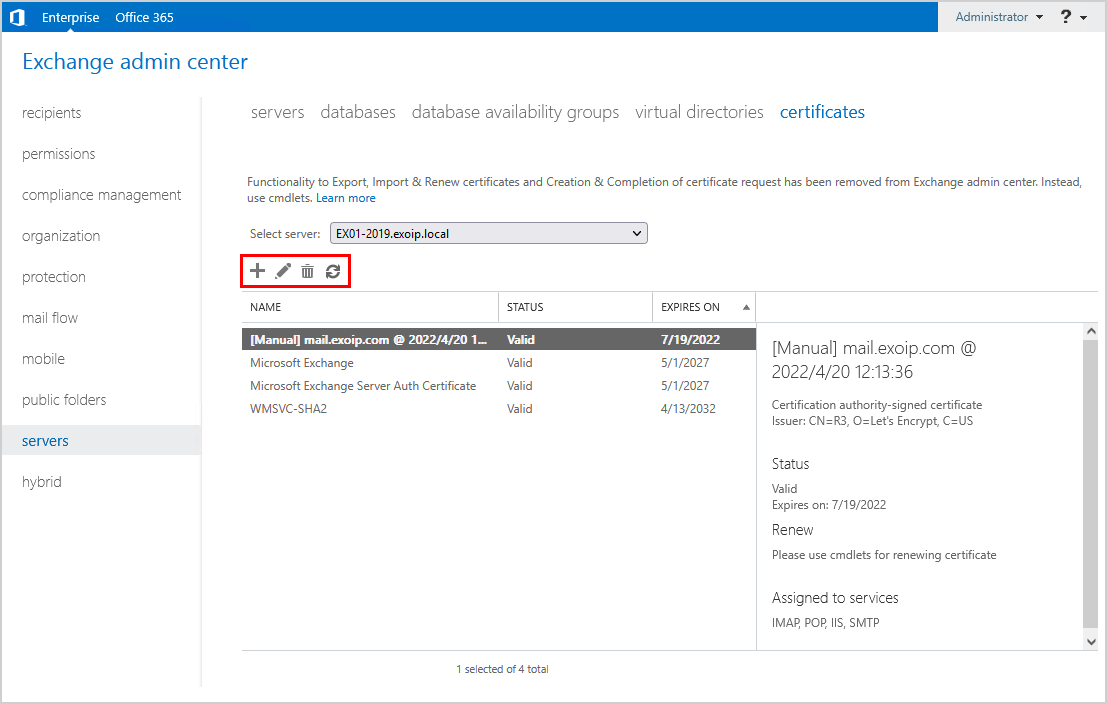
The following certificate functionality in Exchange Admin Center is removed after upgrading to Exchange Server 2019 CU12 and later and Microsoft Exchange Server 2016 CU23 and later:
Import & Export Exchange Certificate removal
Complete Exchange Certificate Request removal
New Exchange Certificate Request from CA removal
Renew Exchange Certificate Request removal
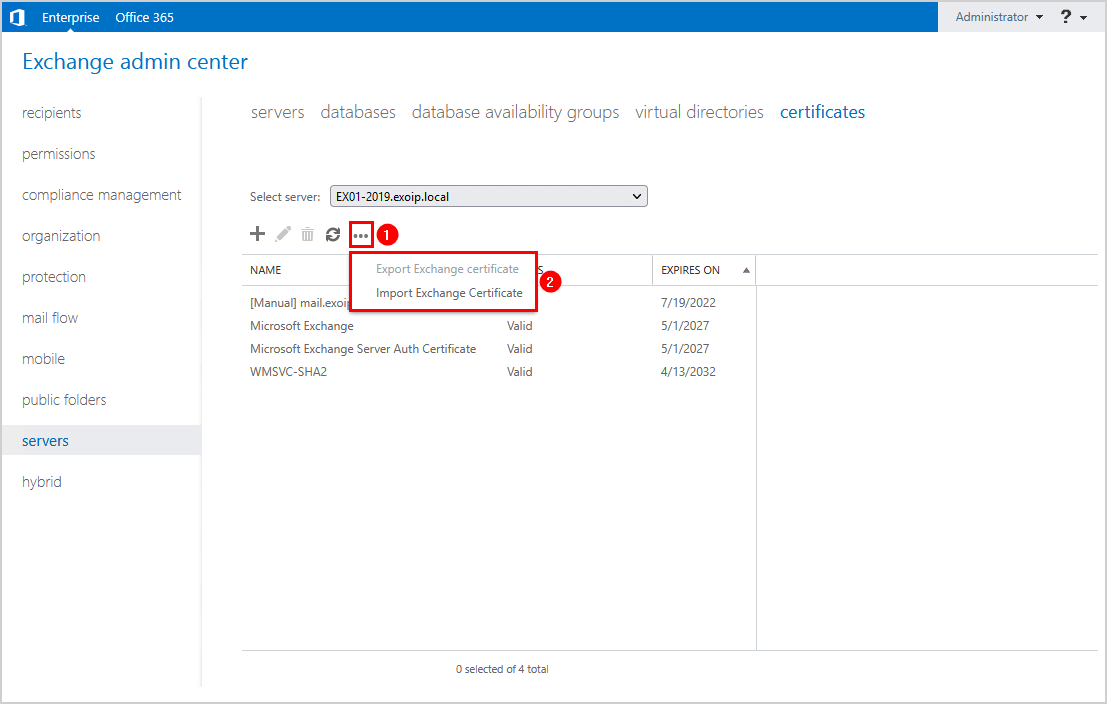
In the previous versions of Exchange Server, there was an option to import or export the Exchange certificate through Exchange Admin Center.
The option to import or export the Exchange certificate through Exchange Admin Center is removed. Instead, you must now use PowerShell cmdlets to import or export the Exchange certificate.
Exchange Server PowerShell cmdlets certificate changes
The FileName and RequestFile parameter that takes the UNC path as input is removed from Exchange Server PowerShell cmdlets after upgrading to Exchange Server 2019 CU12 and later and Microsoft Exchange Server 2016 CU23 and later.
The below articles are up to date with the certificate changes. You can follow them to create, renew, import, and export Exchange Certificates:
How to install Exchange certificate with PowerShell? You already have a certificate and you want to install it in Exchange Server. This means that you need to import the certificate in Exchange Server. After the certificate import, assign the certificate to the Exchange services. In a previous article, we showed how to import certificate in Exchange Admin Center. In this article, you will learn how to install Exchange certificate with PowerShell.
Do you have more than one Exchange Server running in the organization? You can use the same certificate for other Exchange Servers.
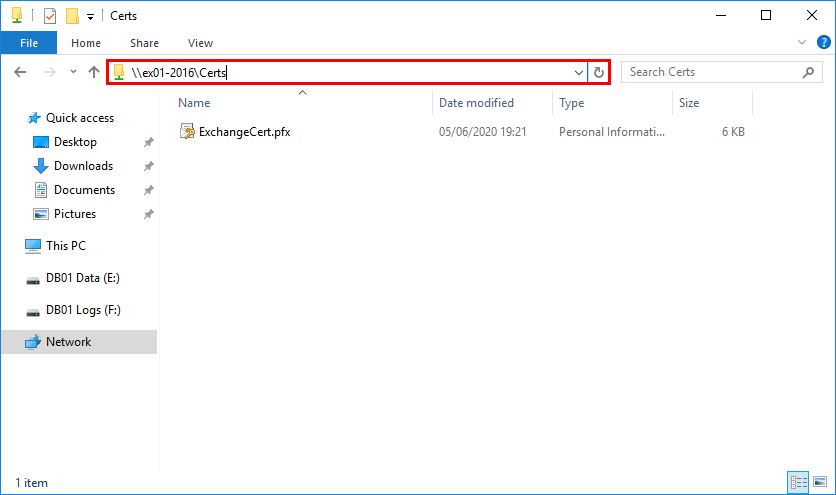
Before we start, place the Exchange certificate in a shared folder. Make sure to assign permissions to the folder. For example, the SYSTEM account. If you don’t give permission, you cannot import the certificate, and an error will show up.
Run Exchange Management Shell as administrator. Run the Import-ExchangeCertificate cmdlet, including the -FileName parameter, to install the Exchange certificate.
Note: To prevent misuse of UNC paths by attackers, Microsoft removed the parameters that take UNC paths as inputs from the Exchange Server PowerShell cmdlets and the Exchange Admin Center. These changes will affect all cumulative update (CU) releases of Microsoft Exchange Server 2019 (CU12 and later) and Microsoft Exchange Server 2016 (CU23 and later). Read more in the article Exchange Server certificate changes.
The -FileName parameter is not available since Exchange Server 2016 CU23 and Exchange Server CU12. Use the -FileData parameter to import the certificate.
The certificate is imported successfully with PowerShell.
Note: The certificate is not yet assigned to Exchange services. You can see that from the dots (…….) in the column Services.
Assign certificate to the Exchange Server services
If the certificate is not assigned to the Exchange Server services, it will do nothing. Assign the certificate with the Enable-ExchangeCertificate cmdlet and the -Services parameter. After running the cmdlet, press Y and press Enter.
[PS] C:\>Enable-ExchangeCertificate -Server "EX01-2016"-Thumbprint 0C4C00B76EB7DB236573BF79258888D32C9B753D -Services SMTP,IMAP,IIS
Confirm
Overwrite the existing default SMTP certificate?
Current certificate: '9BC8DF0DC366A87E2D397DD4CD328D91533346D2'(expires 6/6/2025 8:00:12 PM)
Replace it with certificate: '0C4C00B76EB7DB236573BF79258888D32C9B753D'(expires 9/3/2020 6:22:51 PM)[Y] Yes [A] Yes to All [N] No [L] No to All [?] Help (default is "Y"): Y
The certificate is installed in Exchange Server and everything looks great. We can see the certificate assigned to the Exchange services IMAP, IIS, and SMTP.
Did this article help you to import and assign the Exchange certificate with PowerShell?
Conclusion
You learned how to install Exchange certificate with PowerShell. First, import the certificate in Exchange Server. After that, assign the certificate to the Exchange services.
Thank to: https://fortixpert.blogspot.com/ Este artículo describe cómo configurar FortiGate para Hairpin con el uso de set match-vip y match-vip-only. En este escenario, tanto el PC como el Servidor están detrás de FortiGate y el PC quiere conectarse al Servidor apuntando a su dirección externa (92.0.2.10) en lugar de la real (10.10.10.10). Esto se llama Hairpin NAT. Solución : La solución dependerá de cómo sea el objeto IP Virtual (VIP). Solución 1 : La interfaz externa en el VIP está configurada a una interfaz particular (en este caso a wan1) #config firewall vip edit "VIP" set extip 92.0.2.10 set extintf 'wan1' set mappedip 10.10.10.10 next end Nota: En este escenario, la IP externa VIP puede ser la misma que la IP de la interfaz (es decir, 92.0.2.2) Se necesitan dos políticas: 1) Una política de entrada con ...
Thank to: https://forum.huawei.com/ I would like to share with you how to install PNETLab ( Packet Network Emulator Tool Lab ) and how to add Huawei AR / USG. 1- Go to https://pnetlab.com/ 2- Then Click on Dowload Tab, Select the OVA file from one of the available 3 links, the file size is 2GBytes. "The latest version available until this post date is 4.2.10 " 3- Once the download completed, add the ova file to your VMware player, VirtualBox, or VMware Workstation Pro for my case I am using VMware Workstation Pro: 4- Follow the usual steps of adding any VM like Network adapter setting / Hardware resources RAM/CPU, once completed you should get a screen like this below: 5- Use any SSH software " I recommend SecureCRT" to connect to the server using the IP shown in Step.4 For my case it is 192.168.5.129 . Note that the SSH Credentials for PNETLab server is Username: root /Pass: pnet Click OK to access: 6- Now there are co...
Right. SQL agent needs to be added as a correct resource type. delete this generic resource (after changing the dependencies) Next - 1 - Add the SQL agent 'resource type'. cluster restype "SQL Server Agent" /create /DLL:sqagtres.dll 2- Add the SQL agent resource .. . In the Failover Cluster Management use Add Resource to add the SQL Server Agent resource. Name the resource as “ SQL Server Agent ”, as this is case sensitive unless you are on CU3 or above for SQL Server 2008 RTM. a. Right-click on the SQL Agent resource and go to Properties and fill in values for the two parameters. b. Specify the Virtual Server name of the SQL instance. c. Specify the Instance name . d. Add the SQL Server Resource as a dependency for the newly created SQL Server Agent resource 3 . ...


Comentarios
Publicar un comentario
Dime si la información de este blog te sirvio.